

Overview
Makey Makey Classic
Products
Grades 4–12
Grade Level
30–45 minutes
Time Required
Beginner Course
Category
Difficulty
CSTA Standards
CCSS Standards
Learn to code your own two-player game using Microsoft MakeCode Arcade, then build a physical controller with Makey Makey so two players can compete!
Learning Goals
- Navigate the MakeCode Arcade block coding environment
- Code sprite movement, collision detection, and scoring
- Design a two-player game with separate key controls
- Build physical controllers for both players using Makey Makey
Materials & Preparation
Materials Needed
- Makey Makey kit (2 recommended for 2 players)
- Alligator clips
- Computer with MakeCode Arcade
- Cardboard
- Aluminum foil
- Craft materials for controllers
Preparation
Create MakeCode Arcade accounts or use the browser editor. Test that Makey Makey arrow keys map correctly to MakeCode Arcade controls.
Build Activity — Step by Step
Set Up MakeCode Arcade
Open makecode.com/arcade and create a new project. Explore the block categories: Sprites, Controller, Game, and Scene.
Code Player 1 Sprite
Create a sprite for Player 1 and code movement using arrow key controls (up, down, left, right). Add boundaries so the sprite stays on screen.
Add Player 2
Create a second sprite for Player 2 using different key controls. Use the Multiplayer extension or remap keys for the second player.
Add Game Mechanics
Code collision detection, scoring, or a win condition. Make the game fun and balanced for both players!
Build Physical Controllers
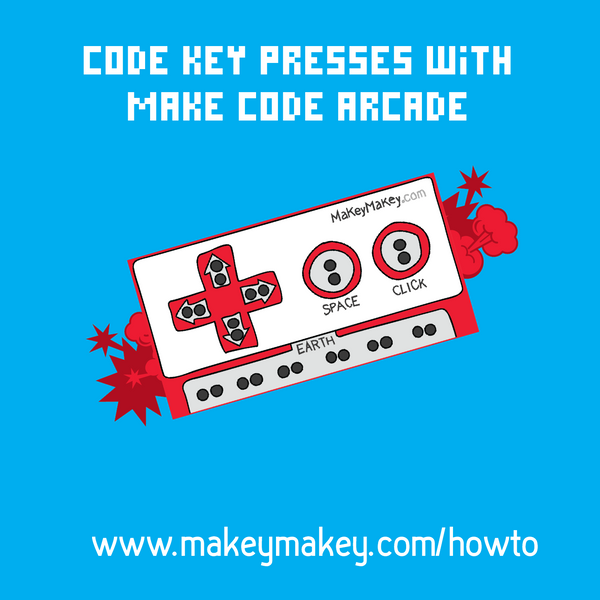
Use cardboard, foil, and conductive materials to create two physical game controllers. Connect them to Makey Makey inputs.
Playtest and Iterate
Have two players test the game with the physical controllers. Gather feedback, fix bugs, and improve both the code and the controllers.
Assessment
Student pairs demonstrate their two-player game with physical controllers. Evaluate code logic, controller design, and collaborative development process.